|
Get
AcrobatReader
 PDF-version
of this page PDF-version
of this page
PatternMaker 6 - new features
October 1st,2001
 PatternMaker
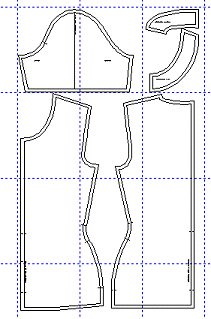
6 has been published. Here are its essential new properties. There are
five versions of the program including the new PatternMaker
Deluxe program version to run the macros and to edit patterns drafted
by the macros. PatternMaker
6 has been published. Here are its essential new properties. There are
five versions of the program including the new PatternMaker
Deluxe program version to run the macros and to edit patterns drafted
by the macros.
Read more
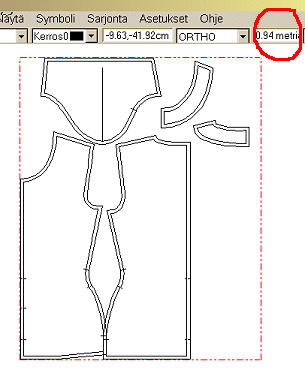
Display paper grid
You can display paper grid on the working area. Use command Settings
/ Configuration in the main menu and check the box in front of option
Paper grid.
You can also use function key F12 or use command File / Print
area /Toggle in the main menu.
Paper grid does not print when you print the patterns.
Display fabric grid
You can display fabric grid and let the program calculate the needed
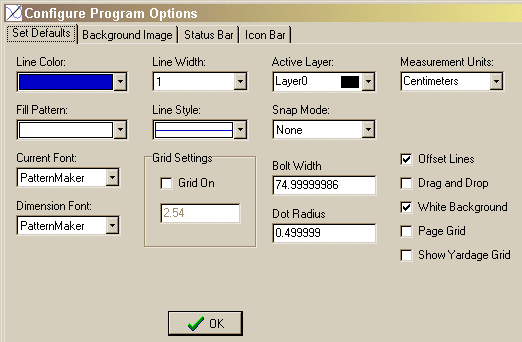
fabric yardage. Set the width of your fabric using command Settings /
Configuration / Bolt width or click at the yardage box on the status line.
If you are going to fold the fabric in two when cutting the patterns from
it, set bold width as half of the total width of the fabric. Also check
the box in front of the Show fabric grid.
The program draws a dotted line around the patterns in as many bolts
(strips) as needed to cover all pattern pieces horizontally. Move pattern
pieces if necessary to fit vertically on one bolt. You can read the needed
yardage in the yardage box in the status bar.
Fabric grid does not print when you print the patterns
Use Settings to define many important things
Settings / Set defaults
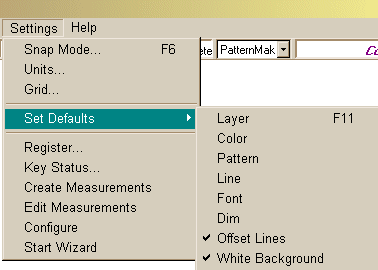
Use Settings / Set defaults in the main menu to set defaults for the
current session. These settings do not remain when you close the
program and open it again.
Layer
With command "Layer" you set the active layer, visible
layers and the names of the layers. You draw on active layers. You can
change, copy move and erase objects on all visible layers. Print commands
apply to the objects on the visible layers.
There are many reasons to change the layer also when you are working
on one layer. So it is worth while remembering that the layer window can
also be opened with function key F11.
Measurement tables
Using command in the Settings menu you also create and edit measurement
tables. If you need instructions for creating and using measurement tables,
please click here.
Settings / Configuration
Use Settings / Configure in the main menu to set permanent properties.
Font
All fonts except "PatternMaker" are outlined. Outlined fonts
may not look very good on the screen, but they are OK when printed.
Background picture
On interleaf Background picture you can load a bmp picture to the
working area. The picture does not print when you print the patterns.
Main uses for the background picture are to scan a picture, load it as
a background picture and draw on top of it a PatternMaker object, e.g.
a company logo or a garment picture. You can also use background picture
to load scanned miniature patterns on PatternMaker work area and to draft
PatternMaker objects with help of them. Use Edit / Scale to scale the
patterns to full size.
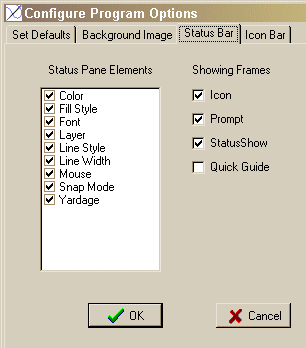 Statusbar Statusbar
On interleaf "Statusbar" you can define which elements are
visible:
Mouse = Displays mouse coordinates and units
Yardage = Estimated yardage needed
Layer = Name of active layer
Font = Active font
Snap = Active snap mode
Pattern = Pattern of filled objects
Line style= Active line style
Line width = Active line width
Color= Active drawing color
On this interleaf you also define which of the following panels are visible:
Icons
Prompt (command line)
Statusbar and
Quick guide(more about this below)
Icons
On the interleaf "Icons" you can define which icons are visible.
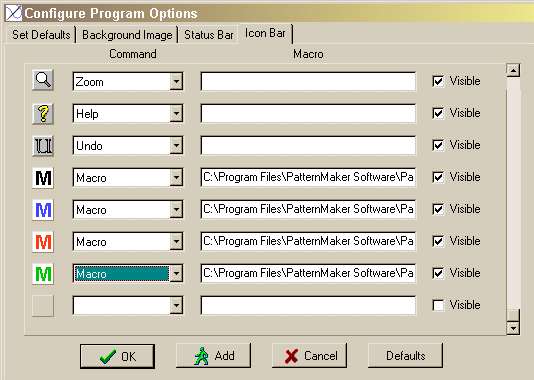
You can add new icons and connect macros to them. Do as follows:
Click"Add" button and a new button is added to the end of the
icon list. Scroll the window to the end of icons. Double click "Macro"
box beside the new icon and choose the macro you want to connect to this
icon. If needed, move in the files window to the directory where the macro
in question is. After having chosen the macro click <OK>. Also check
the "Visible" box in question.
If you want to change the icon or add an icon to an empty icon, click
on the icon and choose a bmp file you want to use as the new icon. If
necessary, move in the files window to a directory where you have the
bmp picture. The picture has to be in bmp format. The size of the picture
should be about 20x20 pixels to be fully visible. Even if you have not
added any picture to the icon, you can read the macro connected to it
moving mouse cursor on the icon.
If you do not want to draw your own bitmap pictures
to be used as icons for macros connected to a PatternMaker icon, you can
use pictures with M-characters of different colors which I have drawn
for you. If you have installed PM using the links on this site, you find
these bitmaps in the PatternMaker program directory with names such as
M_red.bmp, M_blue.bmp etc.
Changing the properties of existing objects
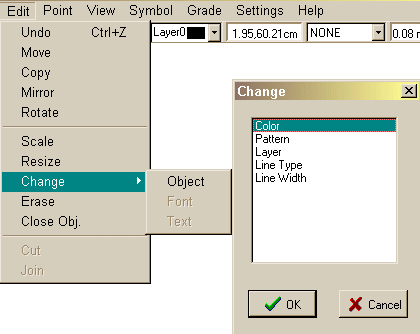
Changing the properties of existing objects and texts is done using command
Edit / Change in the main menu. You can change the color of an object
or a text, pattern of an object, layer on which an object or a text is
as well as line style or width.
Start wizard and PatternMaker Guide
When you open PatternMaker for the first time, Start wizard is run. In
it you can define some basic settings of the program, such as Units and
and Interface Style. If you want to run the Start Wizard later, use command
Settings / Start Wizard in the main menu.
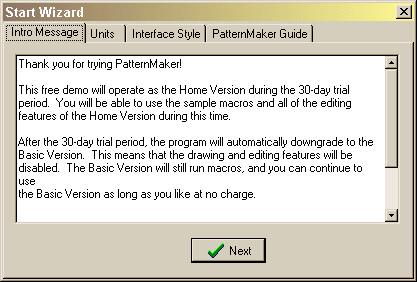
In the Interface Style you can choose Drag and drop or
the traditional PatternMaker. This choice is relevant only if you use
the program only to run macros and print patterns. When Drag and drop
is on, you do not need to choose command "Move" at all. You
only grab the object with mouse and drag it to another place. "Drag
and drop" is normally a good choice for those who use PatternMaker
Basic version. When "Drag and drop" is on, only saving, printing
and macro commands can be used.
If you use the CAD tools of PatternMaker, choose the PatternMaker traditional
interface.
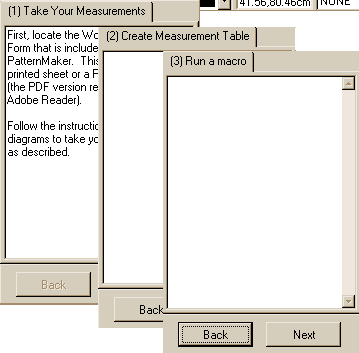
PatternMaker Guide
In the Start Wizard window you can also start PatternMaker Guide.
You can define that PatternMaker Guide is always visible on the work
area checking the relevant box in the Settings / Configure / Status bar.
With PatternMaker Guide you can try different PatternMaker functions having
the Guide on top of the screen while working.
PatternMaker Guide floats. You can drag it with mouse to any place on
the screen.
|


 PatternMaker
manufacturer (USA)and dealers
PatternMaker
manufacturer (USA)and dealers